MP3 Bitrate Explained: 128 vs 192 vs 320 kbps
MP3 bitrate is the single setting that decides how large your audio files are and how good they sound. Pick it too low and music sounds thin; pick it too high and every page with a player loads slowly. This guide explains what the numbers mean and which bitrate to choose for a website.
Table of Contents
What MP3 bitrate means
Bitrate is the amount of data used to store one second of audio. It is measured in kilobits per second (kbps). A 128 kbps file uses 128,000 bits, or 16 kilobytes, for every second of sound. Higher bitrates keep more detail from the original recording, but they also make the file larger.
Because the relationship is simple, you can estimate a file’s size before you export it:
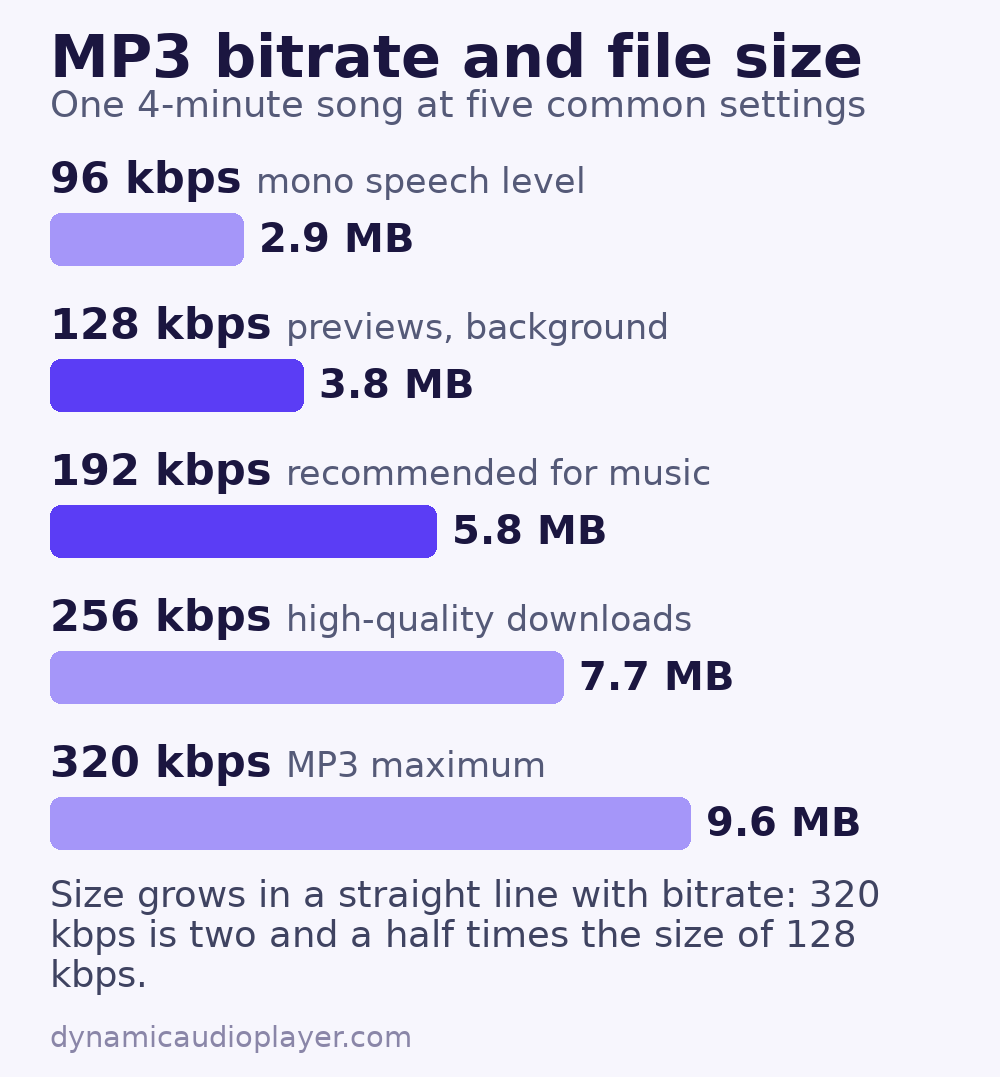
file size in MB ≈ bitrate in kbps × length in seconds ÷ 8 ÷ 1000A four-minute song (240 seconds) at 192 kbps is about 192 × 240 ÷ 8 ÷ 1000 ≈ 5.8 MB.
128 vs 192 vs 320 kbps compared
| MP3 bitrate | Size per minute | Typical use |
|---|---|---|
| 64 kbps (mono) | about 0.5 MB | Speech, audiobooks, voice notes |
| 96 kbps (mono) | about 0.7 MB | Podcasts with music beds |
| 128 kbps | about 1.0 MB | Previews, background music, an older common default |
| 192 kbps | about 1.4 MB | Good all-round choice for music on the web |
| 256 kbps | about 1.9 MB | High-quality downloads |
| 320 kbps | about 2.4 MB | Maximum MP3 quality; rarely needed for streaming |
320 kbps is the highest bitrate the MP3 format allows. Going above 192 kbps makes files noticeably larger, while the improvement in sound is hard for most people to hear on laptop speakers, phones and earbuds.
Constant vs variable bitrate
Encoders can work in two main ways:
- Constant bitrate (CBR) uses the same amount of data every second. File sizes are predictable, which is handy when you need to estimate storage or bandwidth.
- Variable bitrate (VBR) spends more data on complex passages and less on quiet or simple ones. For the same average size, VBR usually sounds a little better.
Both play in every browser. VBR is a sensible default for music. CBR is fine for podcasts, and some podcast hosts recommend it so that players can show accurate durations and skip to the right place.
Sample rate and channels also matter
Bitrate is not the only number in the export dialog. The sample rate (usually 44.1 kHz or 48 kHz) describes how often the sound wave was measured. 44.1 kHz is the standard for music and works everywhere; there is no benefit in exporting MP3 at a higher sample rate for the web.
The channel setting decides between mono and stereo. Stereo needs roughly twice the data for the same quality, so a 96 kbps mono file can sound as good as a 192 kbps stereo file for a single voice. For music, most encoders use “joint stereo”, which stores the parts both channels share only once and saves space without an audible loss.
Which MP3 bitrate should you use?
- Music played on a website: 160–192 kbps stereo, or VBR at a similar average.
- Short previews and background loops: 128 kbps is usually enough.
- Podcasts and spoken word: 64–96 kbps mono. Voice does not need stereo or a high bitrate.
- Files people download to keep: 256–320 kbps, or offer a lossless format separately.
If file size matters more than support for very old devices, consider an Opus version as well. See MP3 vs AAC vs Ogg vs Opus for the trade-offs.
How to set the bitrate when you export
In Audacity
Choose File → Export Audio, pick MP3 as the format, then set the bit rate mode (Constant, Variable, Average or Preset) and the quality. For music, “Variable” with a high quality setting works well. For speech, choose a lower constant bitrate and export in mono.
With FFmpeg
FFmpeg is a free command-line tool that can convert many files at once:
# constant 192 kbps
ffmpeg -i input.wav -codec:a libmp3lame -b:a 192k output.mp3

# variable bitrate, high quality (around 190 kbps on average)
ffmpeg -i input.wav -codec:a libmp3lame -q:a 2 output.mp3

# 64 kbps mono for speech
ffmpeg -i interview.wav -codec:a libmp3lame -b:a 64k -ac 1 interview.mp3
How to check a file’s MP3 bitrate
On a Mac, select the file in Finder and choose Get Info. On Windows, right-click the file, choose Properties and open the Details tab. With FFmpeg installed, ffprobe song.mp3 prints the bitrate along with the sample rate and duration.
Mistakes to avoid
- Re-encoding a low-bitrate file at a higher bitrate. Converting a 128 kbps MP3 to 320 kbps makes the file bigger without bringing back any lost detail. Always export from the original recording.
- Using stereo for a single voice. Mono halves the data needed and sounds the same for speech.
- Uploading WAV files to the website. Keep WAV as your master copy and publish a compressed version. See how to optimize audio files for the web.
- Judging quality on studio headphones only. Most visitors listen on phones and earbuds, so test there too.
Common questions
Is 128 kbps MP3 bitrate good enough?
For previews, background music and speech, yes. For full music tracks that people will listen to closely, 160–192 kbps sounds noticeably cleaner, especially on cymbals and reverb.
Is 320 kbps worth it for streaming?
Usually not. A 320 kbps file is about two thirds larger than a 192 kbps one, which slows loading on mobile connections, while the difference is hard to hear for most listeners.
Does a higher MP3 bitrate affect SEO?
Not directly. But very large files slow down pages that load audio early, and slow pages give visitors a worse experience. Use preload="metadata" so the browser only fetches the full file when someone presses play.
Related guides:
- MP3, AAC, Ogg or Opus: which format to use
- How to optimize audio files for faster pages
- The HTML5 audio element guide