Why Audio Autoplay Is Blocked in Browsers (and What to Do Instead)
Audio autoplay is blocked by default in modern browsers. You added autoplay to an audio element, tested it, and nothing happened. That is not a bug in your code. Modern browsers deliberately stop websites from playing sound before the visitor has interacted with the page. This guide explains the rules and shows what to do instead.
Table of Contents
Why browsers block autoplay with sound
Unexpected sound is one of the most common complaints about the web. It is annoying in a quiet office, it uses mobile data, and it can make a page unusable for people who rely on a screen reader. Browser makers responded by blocking audible autoplay unless the visitor has clearly shown interest in the site.
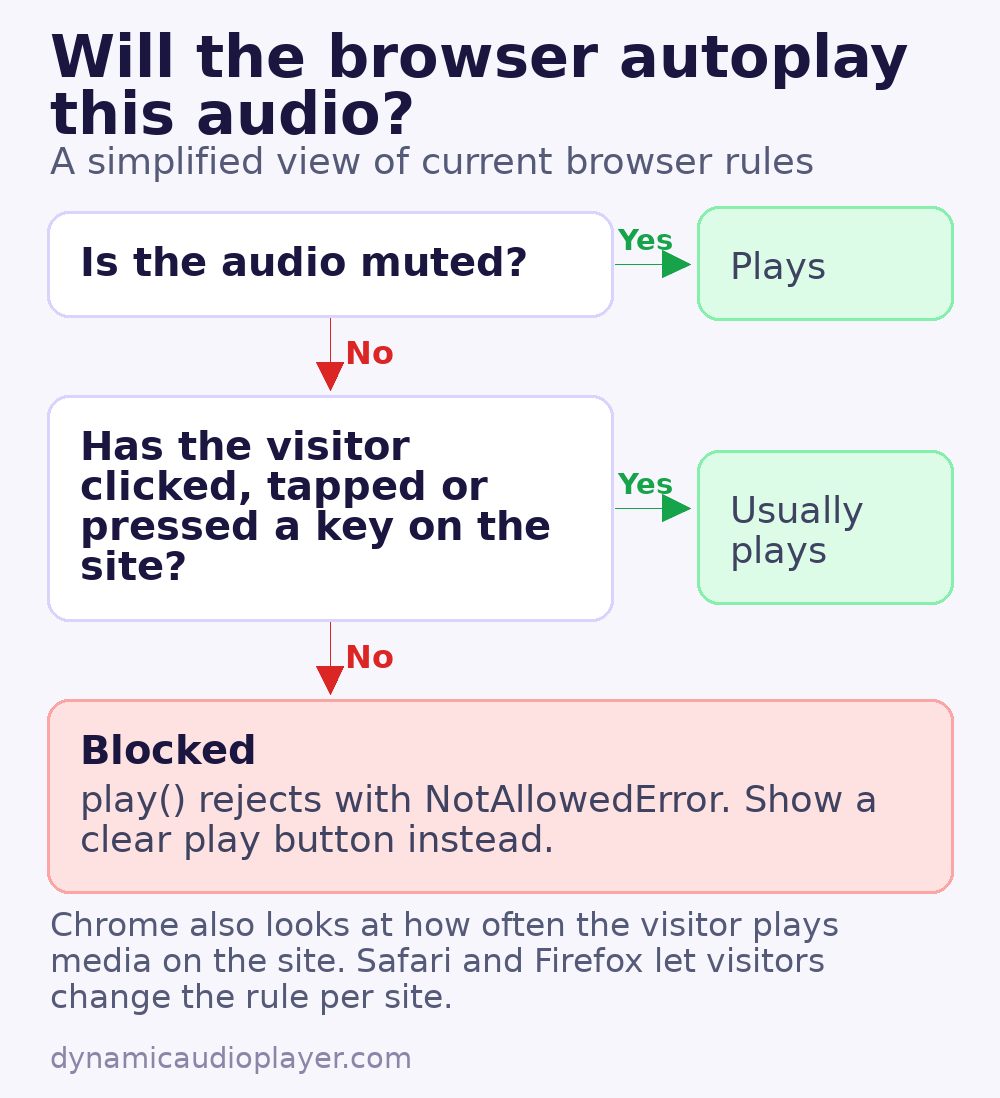
The rules in each browser
| Browser | Default behaviour |
|---|---|
| Chrome and Edge | Muted autoplay is allowed. Sound is allowed after the visitor has interacted with the site (a click or tap), or when the browser has learned that the visitor often plays media on that site. |
| Safari | Autoplay with sound is blocked by default. Visitors can change this per site in Safari’s website settings, but you cannot change it for them. |
| Firefox | Audible autoplay is blocked by default. Visitors can allow it per site from the permissions icon in the address bar. |
The details change from time to time, so treat autoplay as something that might work, never something you can rely on.
How to tell that playback was blocked
The play() method returns a promise. If the browser refuses to start playback, the promise is rejected with a NotAllowedError. Catch it and show a play button instead of failing silently:
const audio = document.querySelector('#intro-audio');

audio.play().catch((error) => {
  if (error.name === 'NotAllowedError') {
    document.querySelector('#play-button').hidden = false;
  }
});
If you use the Web Audio API, the same rule applies in a different form: a new AudioContext may start in the suspended state. Call audioContext.resume() inside a click or keydown handler.
Better alternatives to autoplay
- A clear play button. One obvious button near the top of the page converts better than sound that starts on its own, and it always works.
- Start muted, offer “unmute”. Muted autoplay is allowed in most browsers. This suits background video, but rarely makes sense for audio-only content.
- Remember the visitor’s choice. If someone pressed play on one page, you can continue playback on the next page they open. See how to keep audio playing between pages.
- Use
preload="metadata". The player can show the duration without downloading the whole file, so the page stays fast until the visitor chooses to listen.
Accessibility and audio autoplay
Even when the browser allows it, sound that starts automatically can drown out a screen reader. The Web Content Accessibility Guidelines (WCAG) ask that any audio playing automatically for more than three seconds comes with a way to pause or stop it, or to control its volume separately from the system volume. The simplest way to meet that rule is not to autoplay at all.
Checklist
- Do not depend on
autoplayfor anything important. - Always show visible controls or a play button.
- Handle the rejected
play()promise. - Resume a suspended
AudioContextafter a user gesture. - Test in Chrome, Safari and Firefox with a fresh profile, because your own browser may already trust your site.
For the basics of the audio element itself, read the HTML5 audio element guide.
Common questions
Can I force audio autoplay with JavaScript?
No. Calling play() from a script follows the same rules as the autoplay attribute. Without a user interaction, the browser rejects it.
Is muted audio autoplay allowed?
In most browsers, yes. Muted media may start on its own, which is why background videos work. For audio-only content, muted playback rarely helps.