Web Audio API vs HTML5 Audio: Which One Do You Need?
Web Audio API vs HTML5 audio is a question many developers ask when they first add sound to a site. Both play audio in the browser, but they solve different problems. The <audio> element is a ready-made player for files. The Web Audio API is a toolkit for processing, mixing and generating sound. This guide explains the difference and helps you choose.
Table of Contents
The short answer
- Use the HTML5 audio element to play music, podcasts and other recordings. It streams files, shows controls and needs almost no code.
- Use the Web Audio API when you need effects, visualisations, precise timing, games or sound generated in the browser.
- Use both together when you want a normal streaming player plus a visualiser or equaliser.
Web Audio API vs HTML5 audio: side by side
| HTML5 audio element | Web Audio API | |
|---|---|---|
| Main job | Play an audio file | Process, mix and generate audio |
| Code needed | One HTML tag | JavaScript |
| Long files | Streams while playing | decodeAudioData() loads the whole file into memory first |
| Built-in controls | Yes, with controls | No; you build your own |
| Effects and analysis | Volume and playback speed only | Filters, gain, panning, reverb, frequency analysis and more |
| Timing precision | Good enough for playback | Scheduling accurate enough for music and games |
When the HTML5 audio element is the right choice
For most websites, the audio element does everything you need:
<audio controls preload="metadata" src="/media/track.mp3"></audio>It starts playing before the file has fully downloaded, works with the keyboard and screen readers, and lets visitors seek through long recordings. On phones it also connects to the system’s media controls. For details, see the HTML5 audio element guide.
When you need the Web Audio API
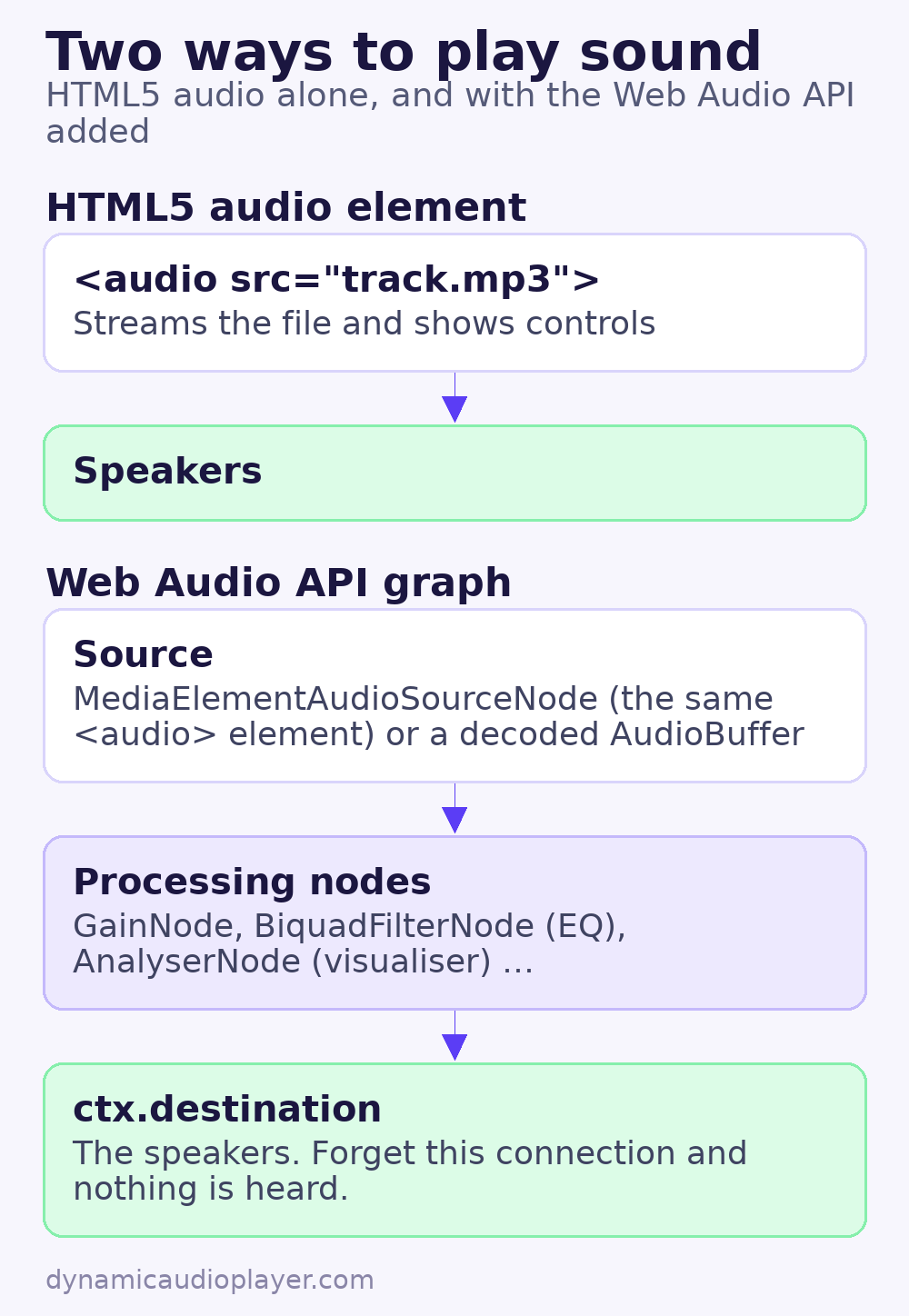
The Web Audio API works as a graph of nodes. Sound flows from a source node, through any number of processing nodes, to the speakers. Typical reasons to use it:
- Visualisers that draw a waveform or spectrum with an
AnalyserNode. - Effects and equalisers using
BiquadFilterNode,GainNodeandConvolverNode. - Games and interactive sound, where short effects must start exactly on time and several sounds play at once.
- Synthesis, where an
OscillatorNodegenerates tones without any file.
Here is a minimal example that plays a short sound effect:
const ctx = new AudioContext();

async function playClick() {
  const response = await fetch('/media/click.mp3');
  const buffer = await ctx.decodeAudioData(await response.arrayBuffer());
  const source = ctx.createBufferSource();
  source.buffer = buffer;
  source.connect(ctx.destination);
  source.start();
}

document.querySelector('#play').addEventListener('click', async () => {
  await ctx.resume(); // the context may start suspended
  playClick();
});
Because decodeAudioData() needs the complete file, this approach suits short clips. For a full song or podcast, combine the API with the audio element instead.
Using both together
A MediaElementAudioSourceNode routes an existing <audio> element into the Web Audio graph. You keep streaming and native controls, and gain analysis or effects on top:
const audio = document.querySelector('audio');
const ctx = new AudioContext();
const source = ctx.createMediaElementSource(audio);
const analyser = ctx.createAnalyser();

source.connect(analyser);
analyser.connect(ctx.destination);

audio.addEventListener('play', () => ctx.resume());
Two details catch many people out:
- Cross-origin files are silent. If the audio file is on another domain, its server must send an
Access-Control-Allow-Originheader and the element needscrossorigin="anonymous". Otherwise the graph outputs silence. - Once connected, the element only plays through the graph. Always connect the chain to
ctx.destination, or nothing will be heard.
Performance and memory
The two approaches use resources very differently. The audio element downloads a file in pieces and only keeps a small part of it in memory while it plays, so a two-hour recording is no problem.
A decoded AudioBuffer stores uncompressed samples. One minute of stereo audio at 44.1 kHz takes roughly 21 MB of memory once decoded, whatever the size of the original MP3. That is fine for a few short sound effects, but a full album loaded this way could use gigabytes and crash a phone’s browser tab.
Processing nodes are efficient, but every node runs for every sample. Keep graphs small on mobile devices, and disconnect nodes you no longer need.
A quick decision checklist
- Do visitors just need to listen to a recording? Use the audio element.
- Do you need a waveform, spectrum or level meter? Add an
AnalyserNodeto an audio element. - Are you building a game, instrument or sound effects that must start instantly? Use the Web Audio API with decoded buffers.
- Do you need to generate tones or apply real-time effects? Use the Web Audio API.
Autoplay rules apply to both
Browsers block sound until the visitor interacts with the page. For the audio element, play() returns a rejected promise. For the Web Audio API, a new AudioContext may start in the suspended state, so call resume() inside a click handler. See why audio autoplay is blocked.
Common questions
Web Audio API vs HTML5 audio: which is better for a music player?
The HTML5 audio element. It streams long tracks efficiently and gives you working controls. Add the Web Audio API only if you want a visualiser or equaliser.
Is the Web Audio API supported in all browsers?
Yes, all current major browsers support it. Very old browsers used a prefixed webkitAudioContext, which you can ignore for new projects.
Does the Web Audio API work when the phone screen is locked?
Not reliably. Mobile browsers may pause pages in the background. For listening sessions such as podcasts, the audio element is the safer choice.
Related guides:
- The HTML5 audio element guide
- How to make an audio player accessible
- Audio not playing? Common causes and fixes