How to Add a Podcast Player to Your Website
Listeners find podcasts in apps, but your website is still the best place to collect every episode, show notes and links in one spot. Here are three ways to add a podcast player for website visitors, from the quickest to the most flexible.
Table of Contents
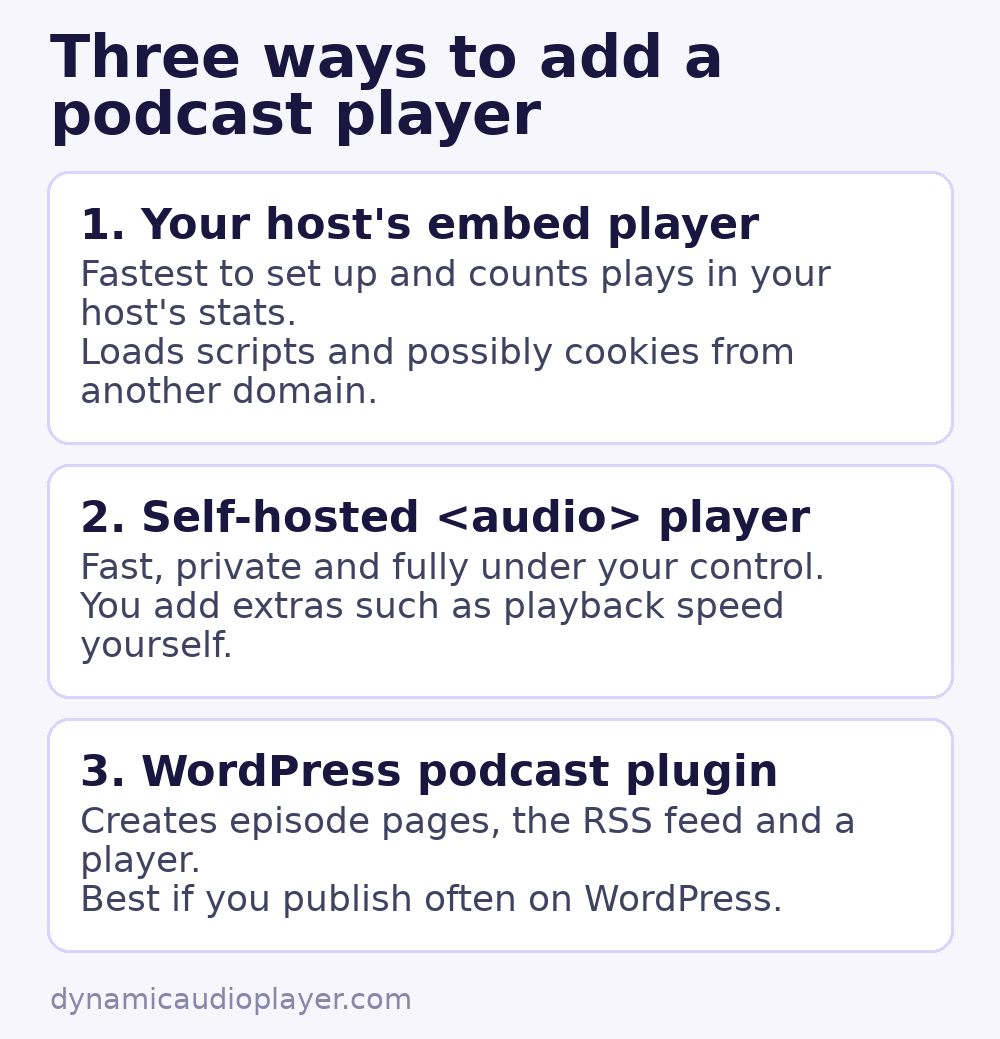
Option 1: use your podcast host’s embed player
Almost every podcast hosting service gives each episode an embed code, usually an <iframe>. Many also offer a playlist player that lists recent episodes.
- Open the episode in your hosting dashboard and look for “Share” or “Embed”.
- Choose the size and colours, then copy the code.
- Paste it into your page. In WordPress, use a Custom HTML block.
Pros: nothing to maintain, and plays are counted in your host’s statistics. Cons: the player loads scripts from another domain, the design is limited, and the player may set its own cookies, which you should mention in your privacy policy. For general advice on iframes, see how to embed audio.
Option 2: a self-hosted audio player
If you have the episode file’s URL, the built-in audio element is enough for a clean, fast player:
<figure class="episode">
  <figcaption>Episode 12: Recording at home</figcaption>
  <audio controls preload="metadata"
         src="https://media.example.com/ep12.mp3"></audio>
  <a href="https://media.example.com/ep12.mp3" download>Download MP3</a>
</figure>
preload="metadata" shows the duration without downloading the whole episode. A download link helps people who prefer to listen offline. Learn more in the HTML5 audio element guide.
Pros: fast, private, and fully under your control. Cons: you have to add features such as playback speed yourself, and plays are not counted by your podcast host unless the file is served from its tracking URL.
Adding a playback speed control
Podcast listeners love speed controls. The audio element supports them through the playbackRate property:
<label>Speed
  <select id="speed">
    <option value="1">1×</option>
    <option value="1.25">1.25×</option>
    <option value="1.5">1.5×</option>
    <option value="2">2×</option>
  </select>
</label>
<script>
  const player = document.querySelector('.episode audio');
  document.querySelector('#speed').addEventListener('change', (e) => {
    player.playbackRate = Number(e.target.value);
  });
</script>
Option 3: a WordPress podcast plugin
If your site runs on WordPress and you publish often, a podcasting plugin can create an episode post type, build the RSS feed that apps read, and add a player to each episode automatically. Compare a few plugins on WordPress.org, check when each was last updated, and test them on a staging copy of your site before installing one on the live site. For simple players without a full podcast feed, see how to add an audio player to WordPress.
Make each episode page useful
- Show notes: a short summary plus links mentioned in the episode.
- A transcript: it helps deaf and hard-of-hearing visitors, and it gives search engines text to index.
- Chapters or timestamps: let people jump to the part they need.
- Subscribe links: point to the apps where your show is listed.
Keep the files small
Spoken word does not need music-quality settings. Mono MP3 at 64–96 kbps is a common choice for podcasts. See how to optimize audio files and which format to use.
Choosing a podcast player for website visitors
- You already use a podcast host: start with its embed player.
- You want speed and privacy: self-host with the audio element.
- You publish weekly on WordPress: a maintained podcast plugin saves time.
Common questions
Is a podcast player for website use free?
Usually. Embed players are included with most podcast hosting plans, the audio element is free, and many WordPress podcast plugins have free versions.
Can I show the latest episode automatically?
Yes. Many hosts offer a “latest episode” or playlist embed that updates by itself. WordPress podcast plugins do the same with their episode lists.